 RxLog Docs
Agents
Agents are collectors that run on your machines and forward logs RxLog.
An agent is a lightweight daemon process you install on a host. It collects system events, audit logs, and files, then sends them to RxLog. The Agents page is where you view every agent, check its status, and register new ones.
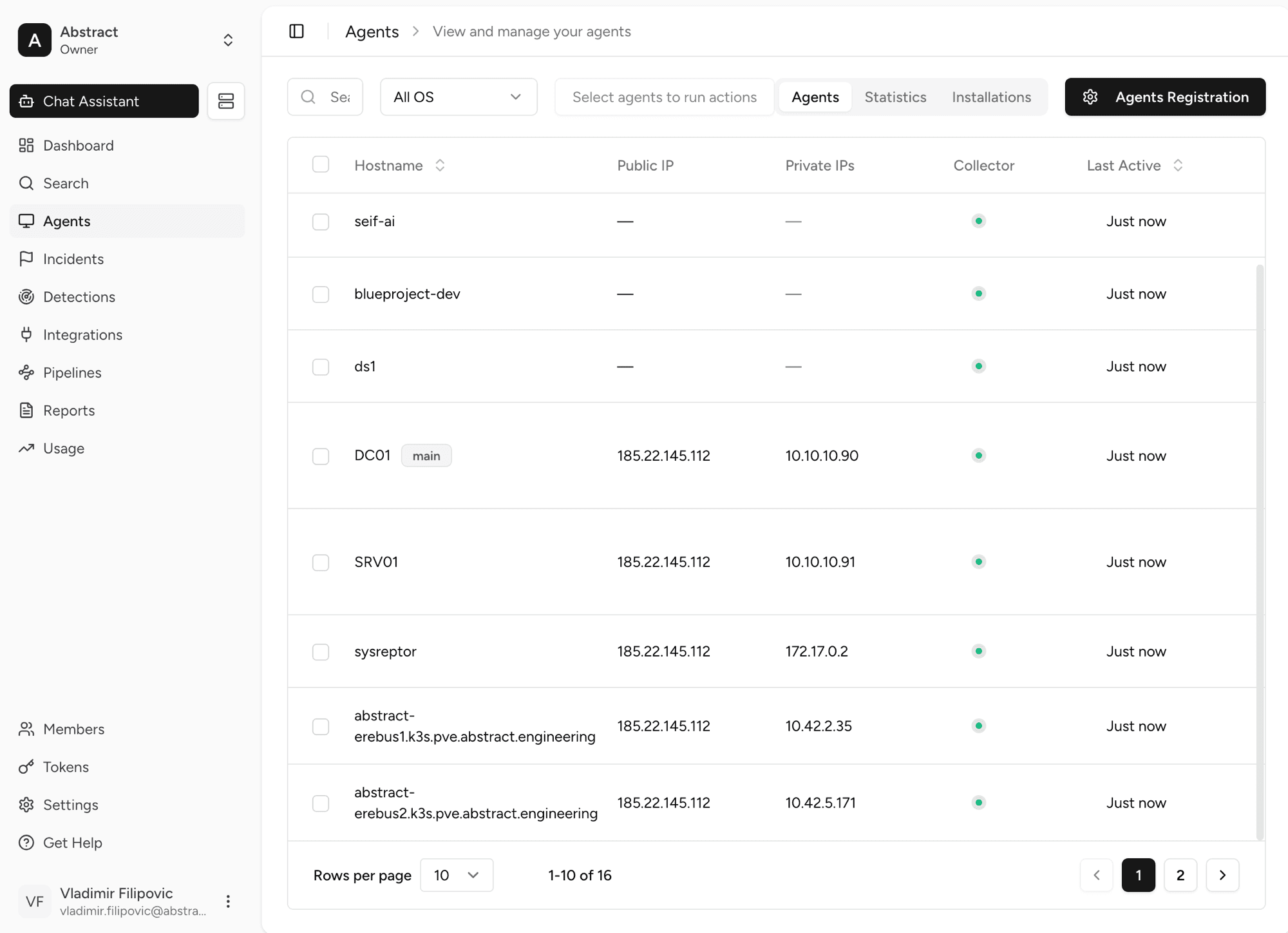
What the page shows
Each row is one agent. The columns tell you:
- Hostname. The name of the machine. A
maintag marks your primary host. - Public IP and Private IPs. Where the agent is reachable.
- Collector. A green dot means the collector is running.
- Last Active. When the agent last sent data. "Just now" means it is healthy.
You can filter by operating system, search by name, and select agents to run actions on them. The Statistics and Installations tabs give you more detail on each agent.
Quick start
Installing an agent is one command. RxLog generates it for you with the download link, checksum, and your workspace key already filled in, so nothing is downloaded or configured by hand.
Click Copy. On Windows, pick PowerShell or CMD first so the command matches your shell.
Paste the command into a terminal on the host and run it. On Windows, open the terminal as Administrator. The command downloads the installer, verifies it, installs and starts the agent, and registers it with your workspace.
The command embeds your workspace registration key, so the agent authenticates and registers itself with no extra steps. The same dialog also offers a direct download of the installer if you prefer to install manually.
Deploying to many Windows machines
If your Windows fleet is managed with Microsoft Intune, upload the MSI once as a Win32 app and assign it to a device group. Intune installs the agent on every device in the group and re-installs it if it goes missing. Setup, detection rules, and troubleshooting are in Agent → Installation → Microsoft Intune.
Further details
The Agent installation guide covers each platform in depth: Linux packages, the macOS installer, Windows MSI options, verifying the service, uninstalling, and offline or proxy installs.
If an agent shows No Response or Never Used, check that the collector service is running on the host and can reach RxLog. The troubleshooting section lists the log locations per platform.