 RxLog Docs
Search
Query your logs with SQL, inspect single events, and ask the AI assistant about your results.
Search is where you investigate your data. You write SQL, run it against your logs, and read the results in a table. You can open a single event for the full detail, or hand rows to the AI assistant for a plain answer.
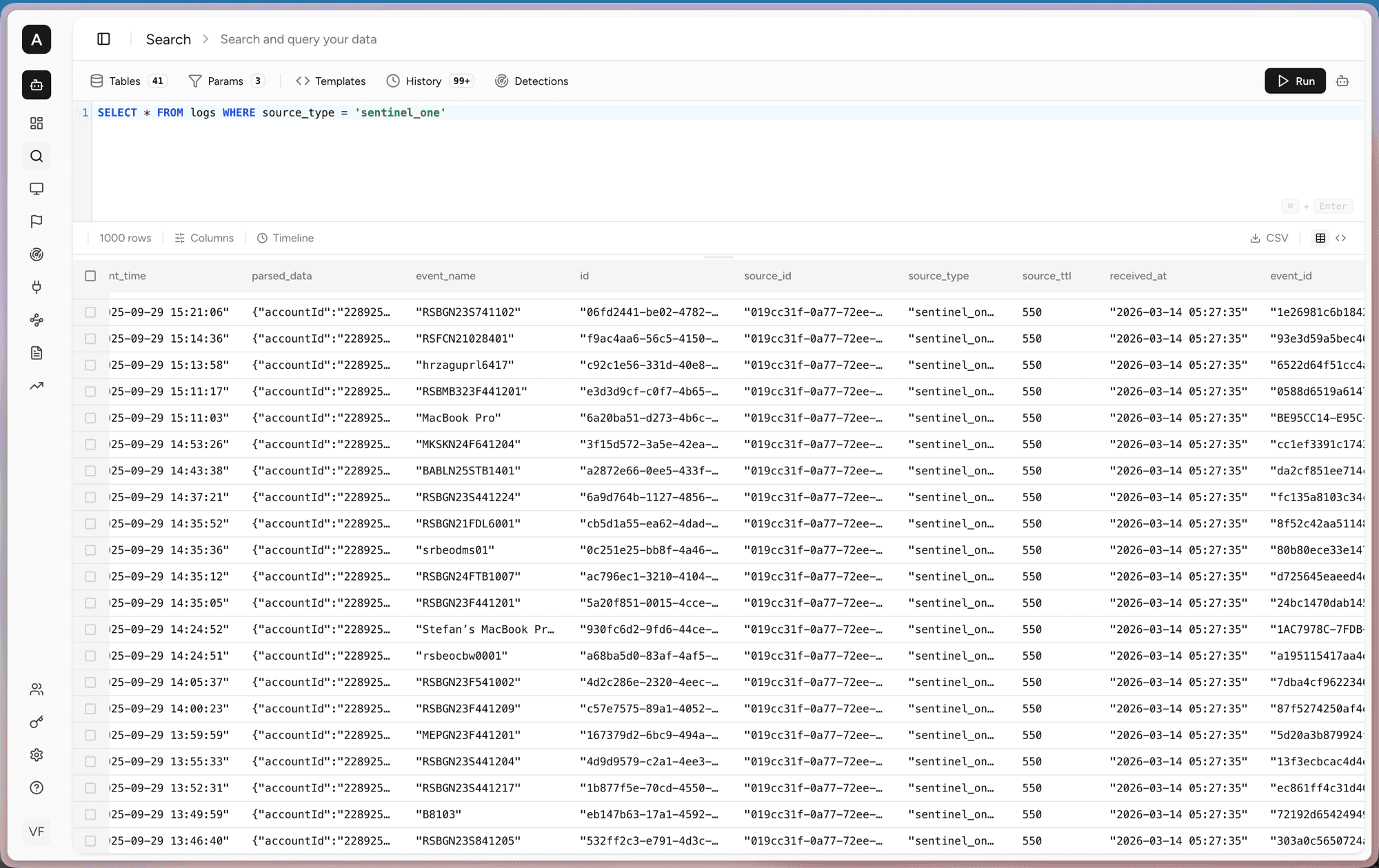
Running a query
The editor at the top takes plain SQL. Run a query and the matching rows appear below. The toolbar gives you Tables, Params, Templates, History, and a link to Detections.
SELECT * FROM logs WHERE source_type = 'sentinel_one'.Working with results
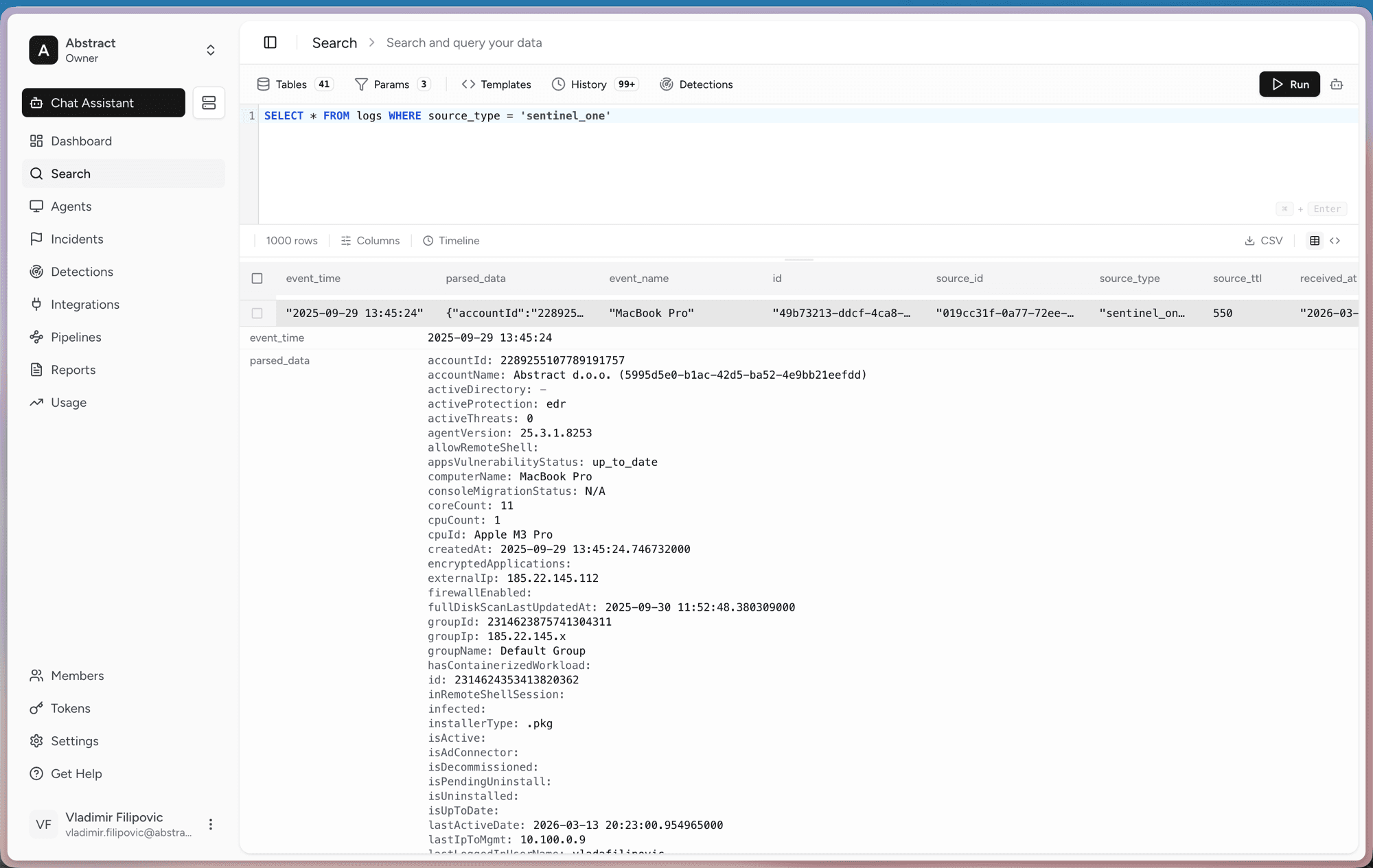
Inspecting a single event
Click a row to expand it. You see every field in the event, including the full
parsed_data with details like account, agent version, IP addresses, and scan
status.
Asking the AI assistant
Select one or more rows and open the Chat Assistant. The rows are sent as context, so you can ask about them in plain language.
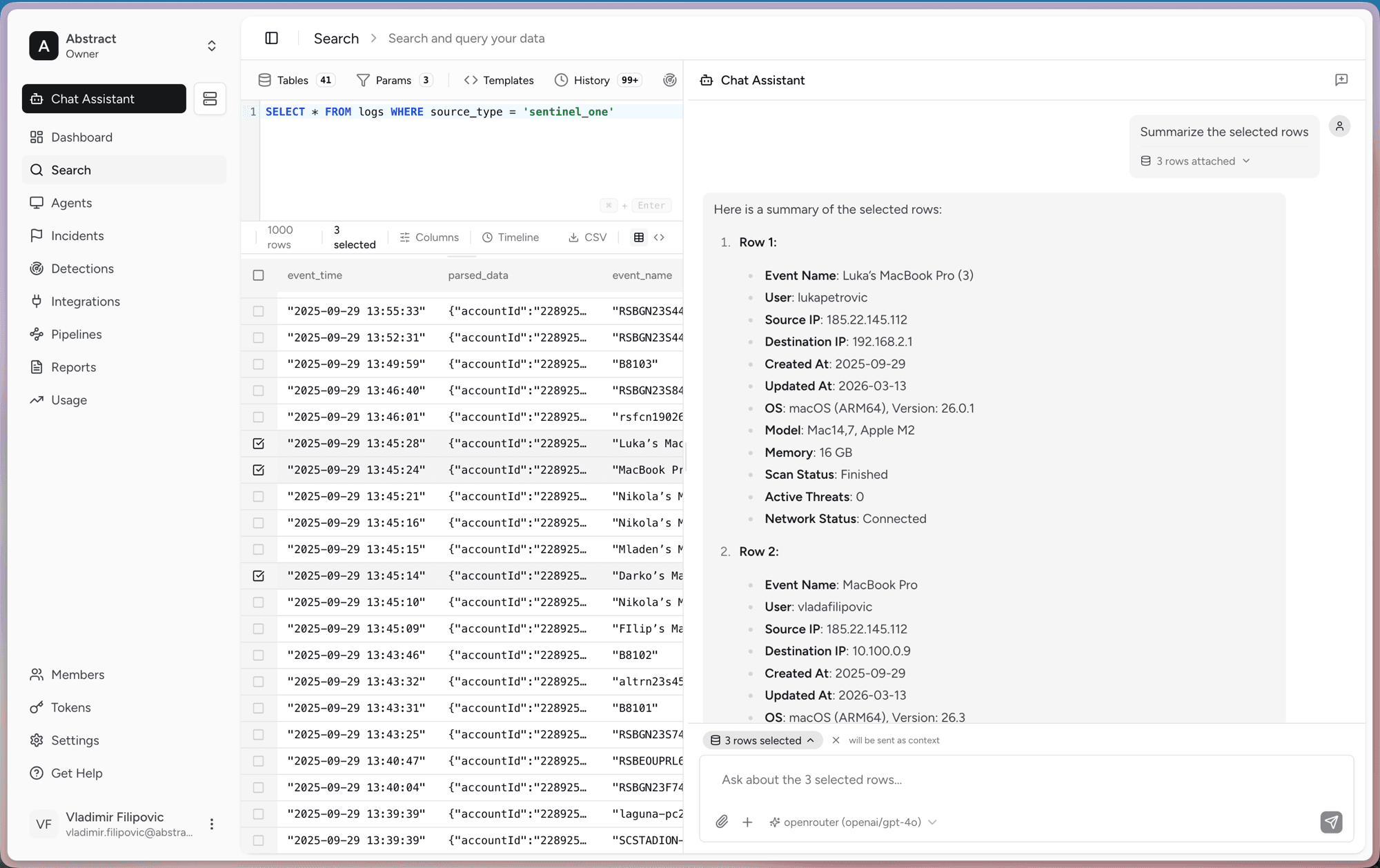
For example, you can ask the assistant to summarize the selected rows. It returns a clear breakdown of each event, with fields like user, source IP, OS, and threat status.
You can also ask direct questions about the data.
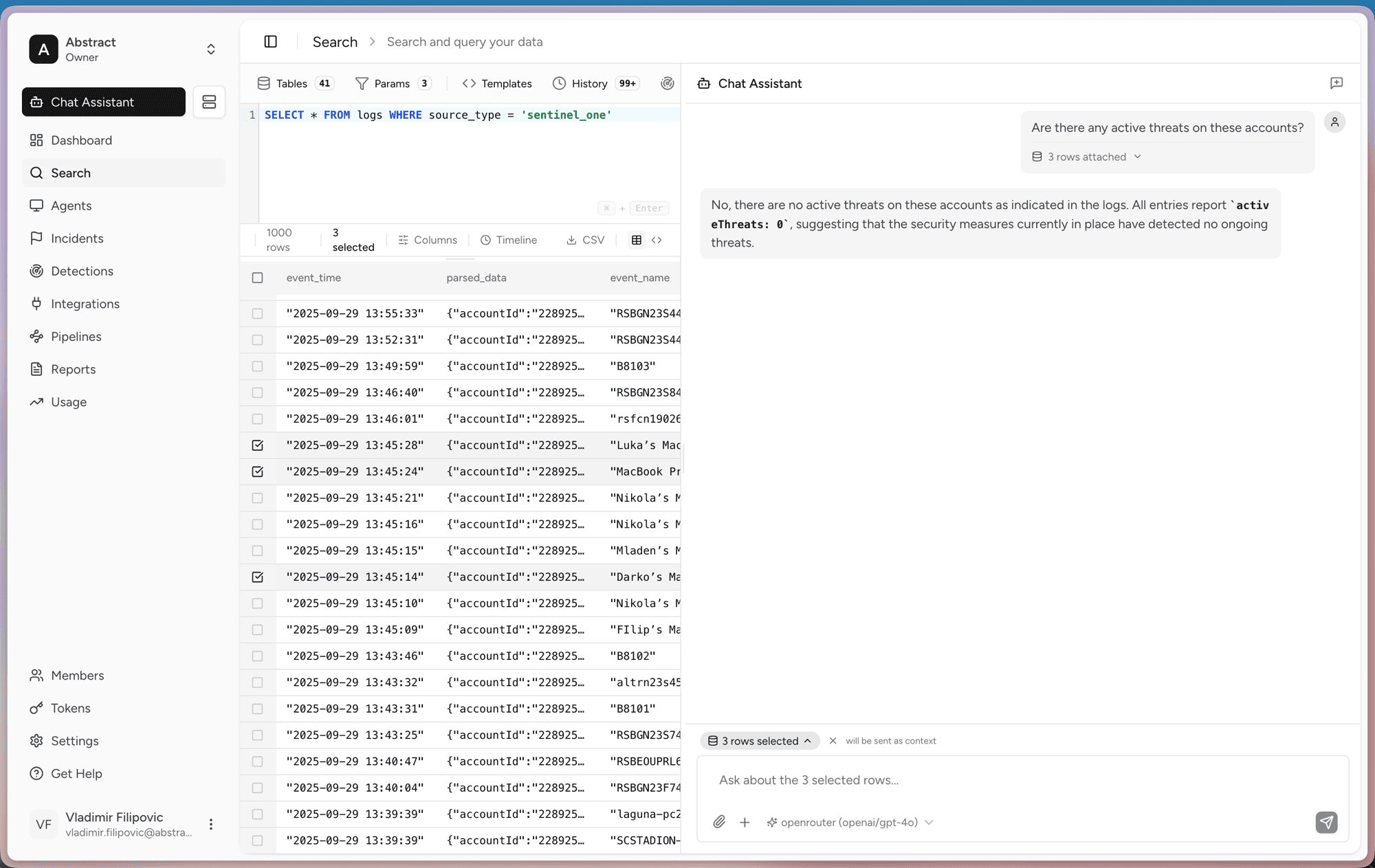
Ask "Are there any active threats on these accounts?" and the assistant reads the attached rows and answers based on what it finds.
Use History to rerun past queries and Templates to save queries you use often.