 RxLog Docs
MCP
Connect external AI tools to RxLog over MCP using a scoped API token.
RxLog exposes an MCP server so external AI tools — such as Claude or other MCP-aware assistants — can reach your workspace data programmatically. The connection is authenticated with an API token, so the outside tool talks to RxLog with exactly the permissions you grant it and nothing more.
How the connection works
You connect a tool by creating an API token with the Access MCP Server permission and pointing the tool's MCP client at RxLog using that token. The tool then authenticates as your workspace on every request, scoped to what the token allows.
API tokens live under Settings → API Tokens.
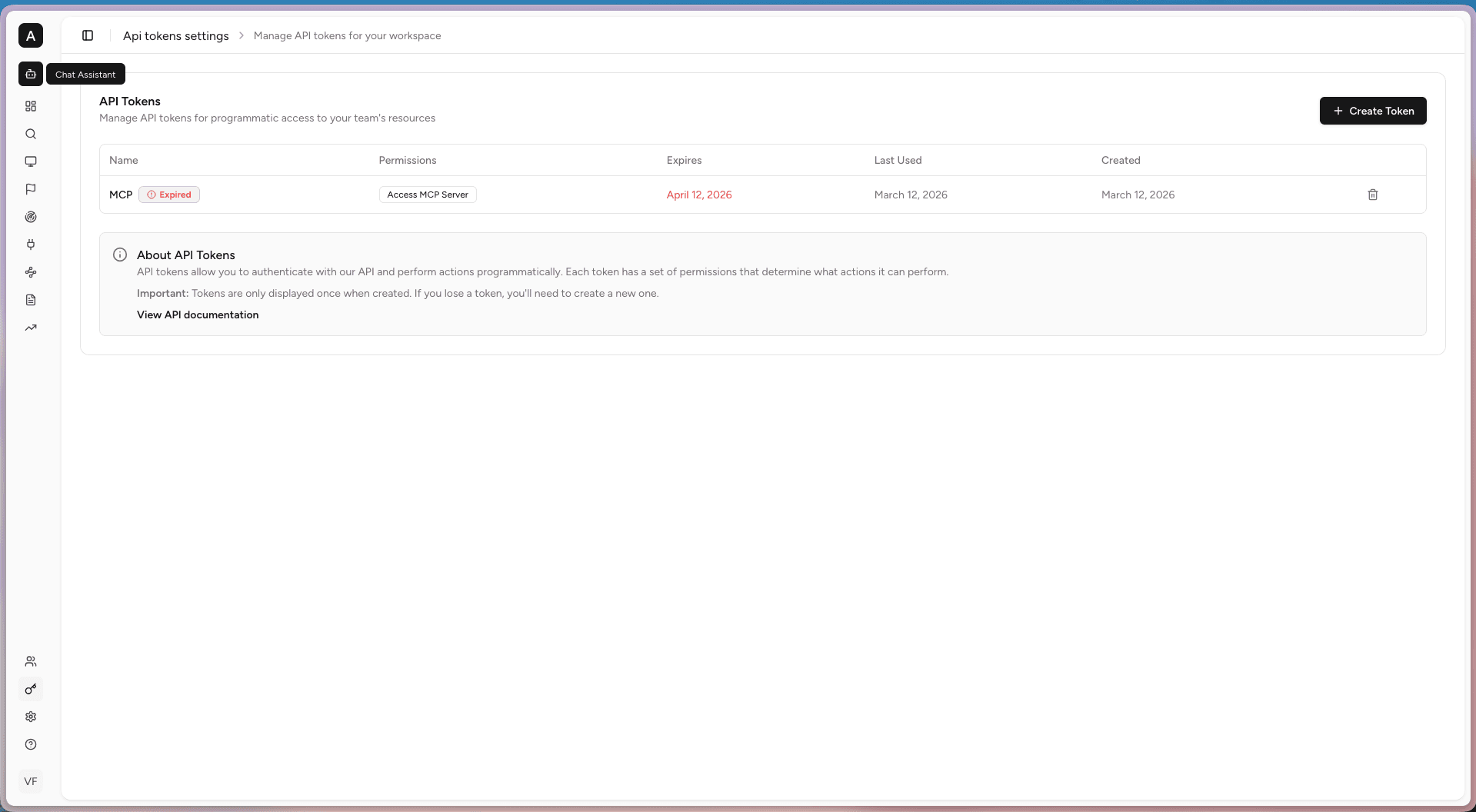
The list shows each token's name, permissions, expiry, last-used date, and creation date. A token past its expiry shows Expired and stops working — create a new one to restore access.
Tokens are shown only once, when created. If you lose a token you cannot read it back — create a new one and update your tool's configuration.
Creating an MCP token
Click Create Token to open the dialog.
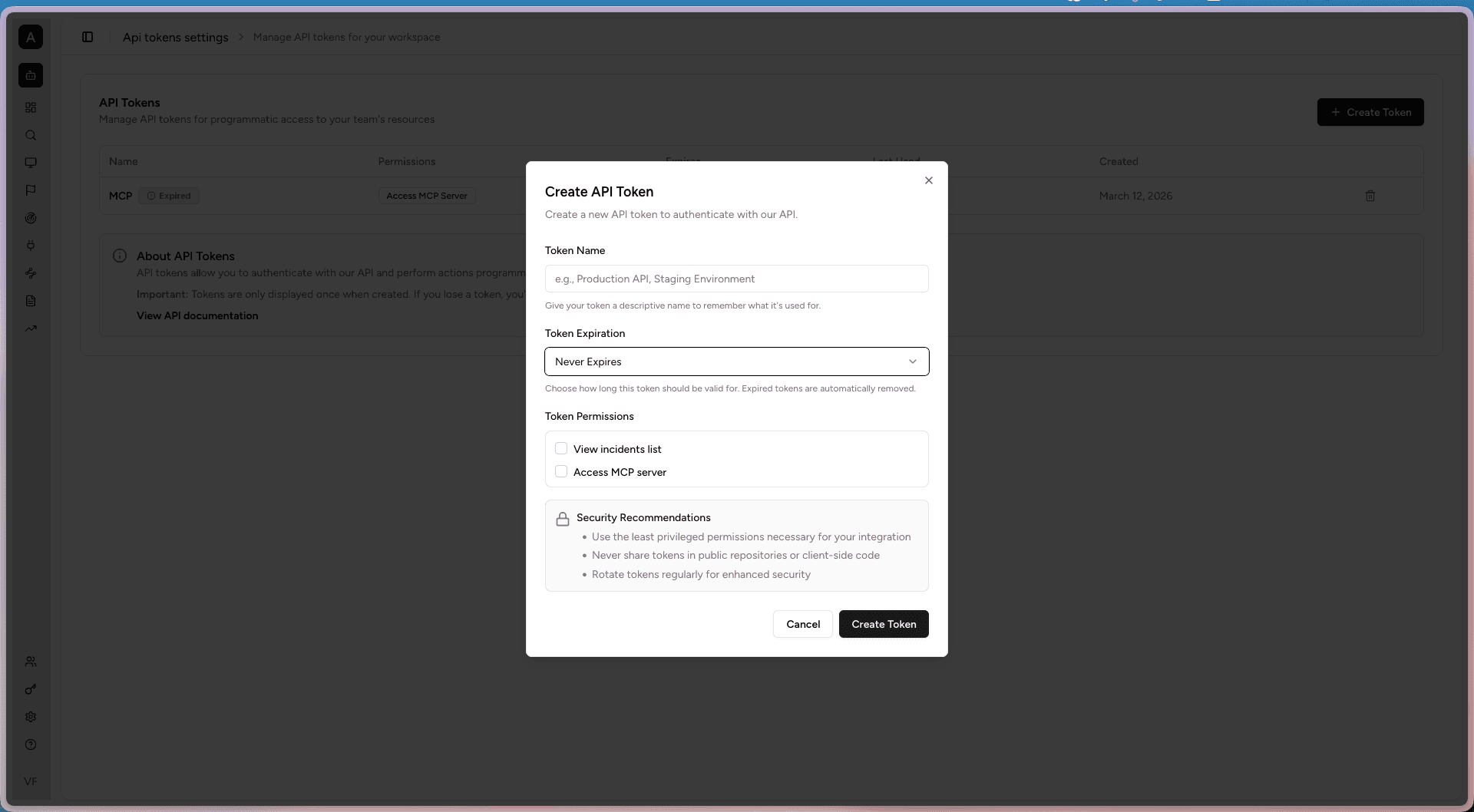
Fill in:
- Token Name. A descriptive label so you remember what the token is for.
- Token Expiration. How long the token stays valid. Expired tokens are removed automatically; choose Never Expires only when you must.
- Token Permissions. What the token can do. For an MCP connection, enable Access MCP server.
Follow least privilege: give each token only the permissions its tool needs, prefer a real expiry over Never Expires, rotate tokens regularly, and never put a token in a public repository or client-side code.
Connecting your client
The MCP endpoint is:
https://<your-rxlog-host>/mcpIt speaks MCP over streamable HTTP. Every request must carry the token as a
bearer header: Authorization: Bearer <TOKEN>. Replace <your-rxlog-host> with
the hostname you use to open the RxLog UI.
Claude Code
claude mcp add --transport http rxlog https://<your-rxlog-host>/mcp \
  --header "Authorization: Bearer <TOKEN>"
Run /mcp inside Claude Code to confirm the server shows as connected. Tools
appear as mcp__rxlog__<tool> and the prompts below become slash commands such
as /mcp__rxlog__threat_hunt.
To share the connection with a team without sharing the token, add it with
--scope project. This writes a .mcp.json next to your code that reads the
token from an environment variable:
{
  "mcpServers": {
    "rxlog": {
      "type": "http",
      "url": "https://<your-rxlog-host>/mcp",
      "headers": { "Authorization": "Bearer ${RXLOG_MCP_TOKEN}" }
    }
  }
}
Each person then exports their own RXLOG_MCP_TOKEN.
Claude Desktop, Cursor, and other MCP clients
Add the same server to the client's MCP configuration file:
{
  "mcpServers": {
    "rxlog": {
      "url": "https://<your-rxlog-host>/mcp",
      "headers": { "Authorization": "Bearer <TOKEN>" }
    }
  }
}
Some clients call the transport http or streamable-http; pick whichever
your client offers for remote servers.
Verifying the connection
List the available tools directly with curl. A valid token returns a JSON
result with the tools below; an expired or unauthorised token returns 401
or 403.
curl -s https://<your-rxlog-host>/mcp \
  -H "Authorization: Bearer <TOKEN>" \
  -H "Content-Type: application/json" \
  -H "Accept: application/json, text/event-stream" \
  -d '{"jsonrpc":"2.0","id":1,"method":"tools/list"}'
What the connection exposes
Everything is scoped to the workspace the token belongs to.
Tools
| Tool | What it does |
|---|---|
get_workspace_info | Workspace overview and resource counts |
get_rules | Detection rules: count, list, or details of one rule |
get_incidents | Security incidents in the workspace |
get_integrations | Data source integrations and their status |
get_agents | Collector agents and their health |
clickhouse_schema | Lists log tables, or the columns of one table |
clickhouse_select | Runs a read-only SQL query against the workspace logs |
clickhouse_select accepts SELECT statements only. The assistant is
instructed to check the schema first, always add a LIMIT, and add a time
filter on large tables.
Prompts
Prompts are ready-made instructions the assistant picks based on your request. You can also invoke one explicitly from clients that expose prompts as commands.
| Prompt | Use it for |
|---|---|
log_forensics | Log counts, searches, timelines, source type queries |
detection_forensics | Triggered detections, results, severity, MITRE ATT&CK mapping |
incident_response | Incident details, status, investigation |
rule_analysis | Rule list, rule effectiveness, which rules fired |
integration_health | Integration status and ingestion problems |
threat_hunt | Proactive hunting, IoC search, anomalies |
workspace_info | Workspace overview and plan details |
agent_status | Which collector agents are online and their resources |
rxlog_assistant | General platform help and anything not covered above |
The connection is read-only: no tool creates, changes, or deletes workspace data. Revoking the token under Settings → API Tokens disconnects the client immediately.